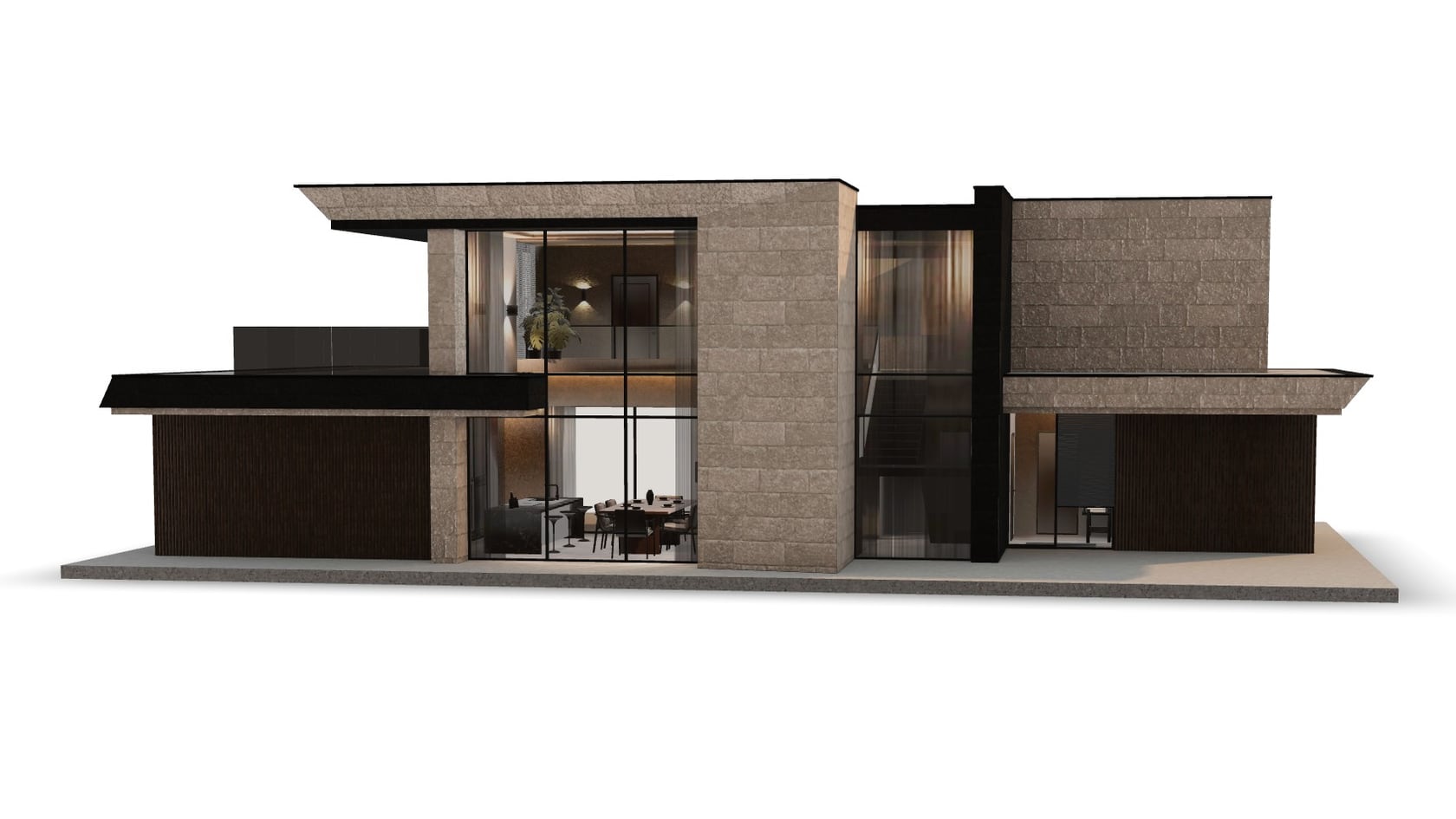
Will the sofa fit the living room, will the house fit the plot — AR answers that right through the phone camera, with no app.
What the visitor sees
- The page shows a 3D model and a "View in AR" button.
- The phone opens the camera and finds the floor or a table.
- The model appears at full size: you can walk around it and turn it.
No app to install. On iPhone and iPad it's the built-in AR Quick Look viewer; on Android, Google's Scene Viewer on phones that support ARCore.
Which files you need
iPhone and iPad need USDZ, Android needs GLB. Ready-made viewers such as model-viewer show the AR button and hand the phone the right file. More on formats in 3D file formats.
Scale 1:1
The model must be in real-world units — meters. If it was exported in centimeters or arbitrary units, a house ends up the size of a box and an armchair the size of a house.
Memory and weight
The phone runs the camera, tracks the space and draws the model all at once. A heavy model stutters or closes the view. How to make it lighter is covered in Why a 3D model lags on a phone.
What to prepare
- A 3D model at real-world scale.
- GLB and USDZ.
- For large objects, a decision on what's visible inside — for example, interiors in a house's windows.
- A poster for the page while the model loads.
What it looks like in practice
- Hilbert: a visitor places a house at full size right on their plot from a phone. The GLB models with interiors in the windows were moved to Meshopt and KTX2 so the house opens and rotates smoothly even on an average phone.
- M1 GROUP: GLB and USDZ export for AR viewing on marketplaces.
Common mistakes
- A model in the wrong units.
- GLB only: AR on iPhone needs USDZ. Some viewers can build it themselves, but it's more reliable to prepare it separately.
- A heavy model that stutters along with the camera.
- Testing on just one phone.
Checklist
- Real-world scale, in meters.
- GLB and USDZ.
- A light model.
- An AR button in the viewer.
- Testing on both iPhone and Android.